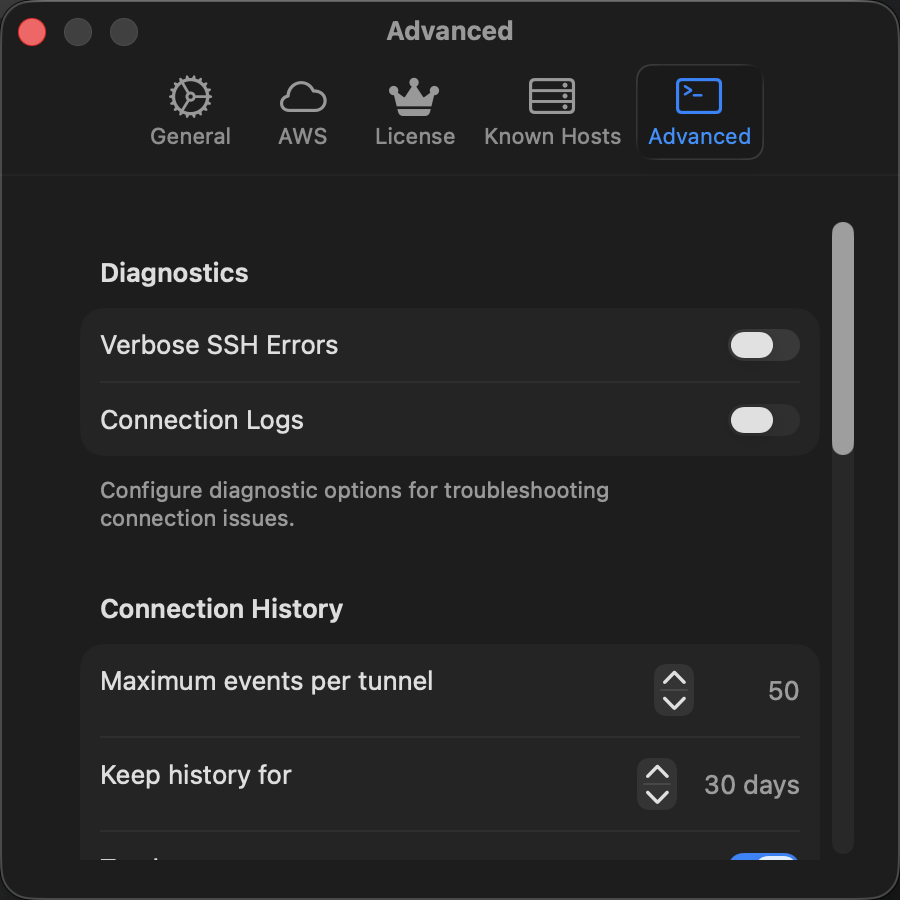
Advanced Settings
Advanced Settings give you control over connection history, diagnostics, and troubleshooting features. These settings are optional - StormTunnel works great with the defaults.
🔍 Diagnostics
Verbose SSH Errors
What it does: Shows detailed SSH output when connections fail
- Default: Off
- When to enable: When troubleshooting connection problems
- What you'll see: Full error messages with server responses and timing details
Privacy Note
Detailed errors may show sensitive information like server names and IP addresses. Only enable when actively troubleshooting.
How to use it:
- Enable "Verbose SSH Errors"
- Try connecting to your tunnel
- If it fails, the error message will include detailed SSH output
- Use this information to diagnose the problem
- Disable when done troubleshooting
📊 Connection History
StormTunnel keeps a history of your tunnel connections to help you track usage and troubleshoot issues.
Maximum Events per Tunnel
What it controls: How many connection events to remember for each tunnel
- Range: 20-200 events
- Default: 50 events
- Recommended:
- 20-50 events: Best for most users - fast and efficient
- 100-200 events: If you need detailed long-term history
Performance Tip
Higher numbers may cause brief delays when viewing history. Stick with 50 unless you need more.
Keep History For
What it controls: How long to keep connection history before automatic cleanup
- Range: 7-90 days
- Default: 30 days
- Options:
- 7 days: Minimal storage, recent activity only
- 30 days: Good balance (recommended)
- 90 days: Maximum history retention
Automatic cleanup runs daily to remove old entries.
Track Error Events
What it does: Records failed connections in your history
- Default: On
- Why it's useful: Helps identify patterns in connection problems
- What's recorded: Error type, time, and which tunnel failed
Example: If a tunnel keeps failing at the same time each day, you'll see the pattern in your history.
Track Stage Changes
What it does: Records each step of the connection process
- Default: Off
- When to enable: Detailed troubleshooting of connection issues
- Connection stages tracked:
- Preparing to connect
- Establishing SSH connection
- Authenticating credentials
- Connected successfully
- Disconnecting
- Disconnected
Use case: If connections fail at a specific stage, this helps pinpoint the problem.
Track Mode Changes
What it does: Records when StormTunnel switches between different SSH connection methods
- Default: On
- What it tracks: Which SSH method is being used for each connection
- Why it matters: Helps understand connection behavior and compatibility
Background: StormTunnel can use different SSH methods depending on your setup. This tracks which method is active.
Anonymize Hostnames
What it does: Replaces server names with codes in your history for privacy
- Default: Off
- When to enable: If you need to share history without exposing server names
- How it works: Server names are replaced with unique codes
- Privacy: Codes cannot be reversed back to original names
Example: Instead of showing production-db.company.com, history shows a3f9b2c1...
Clear All History
What it does: Deletes all connection history for all tunnels
- Effect: Immediate and permanent
- Confirmation: You'll be asked to confirm before deleting
- What's deleted: All connection events, errors, and timing data
Cannot Be Undone
Once cleared, history cannot be recovered. Make sure you don't need it before clearing.
🛠️ Developer Tools
Debug Mode
Under Development
Debug Mode is currently disabled while under development. When enabled, it will show additional technical information in the interface for troubleshooting.
The Debug Mode toggle appears in the Advanced settings but is currently non-functional. This feature is planned for a future release.
Export Debug Info
Under Development
Export Debug Info is currently disabled while under development. When enabled, it will create a diagnostic report you can share with support when troubleshooting issues.
The Export button appears in the Advanced settings but is currently non-functional. This feature is planned for a future release.
💡 Tips & Best Practices
For Most Users
Recommended settings:
- Keep defaults for history (50 events, 30 days)
- Enable "Track Error Events" to spot problems
- Only enable "Verbose SSH Errors" when troubleshooting
For Power Users
If you manage many tunnels:
- Increase max events to 100-200 for detailed tracking
- Enable "Track Stage Changes" to understand connection flow
- Keep longer retention (60-90 days) for trend analysis
For Privacy-Conscious Users
To minimize data collection:
- Reduce max events to 20
- Shorten retention to 7 days
- Enable "Anonymize Hostnames"
- Disable "Track Stage Changes" and "Track Mode Changes"
- Clear history regularly
🔧 Troubleshooting
History Not Showing
Problem: Connection history appears empty
Solutions:
- Check if "Track Error Events" is enabled
- Verify retention period hasn't expired
- Try connecting to a tunnel to generate new events
- Check if history was recently cleared
Performance Issues
Problem: App feels slow when viewing history
Solutions:
- Reduce "Maximum Events per Tunnel" to 50 or less
- Shorten "Keep History For" to 30 days
- Clear old history with "Clear All History"
- Restart StormTunnel
Too Much Storage Used
Problem: StormTunnel using too much disk space
Solutions:
- Reduce max events per tunnel
- Shorten retention period
- Clear all history
- Disable stage and mode tracking if not needed
❓ Common Questions
How much space does history use?
Each connection event uses about 200 bytes. With default settings (50 events per tunnel, 30 days), you'll use less than 1MB for typical usage.
Will clearing history affect my tunnels?
No. Clearing history only removes the connection log. Your tunnel configurations, SSH keys, and settings are not affected.
Should I enable verbose errors?
Only when troubleshooting. Verbose errors can expose sensitive information, so disable them when you're done diagnosing problems.
What's the difference between events and days?
- Max events: Limits how many connection attempts to remember per tunnel
- Retention days: Automatically deletes events older than this many days
Both limits work together - whichever limit is reached first will cause old events to be removed.
📚 Related Topics
- General Settings - Basic app configuration
- Connection History Feature - Learn more about history tracking
- Troubleshooting - Common issues and solutions
Last Updated: December 20, 2025